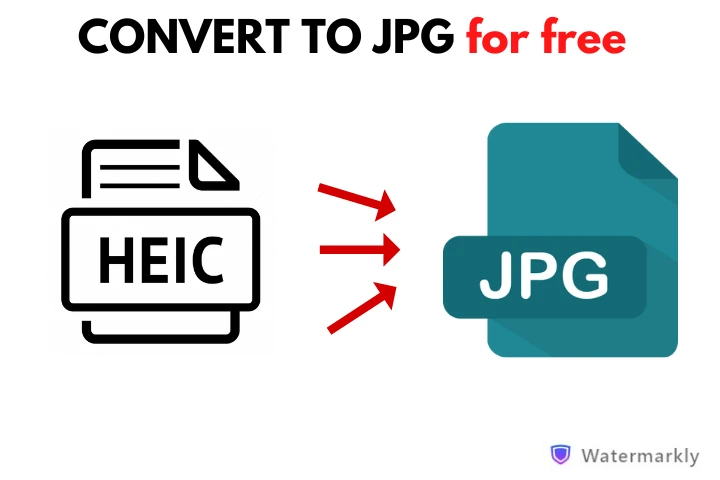
How to Convert HEIC to JPG Without Losing Quality in 2026
In the ever-evolving world of digital photography, Apple's HEIC (High Efficiency Image Container) format has become a staple for iPhone users since iOS 11. It offers superior compression, reducing file sizes by up to 50% compared to JPG while maintaining high quality. However, compatibility issues persist—many websites, apps, and older devices still prefer the universal JPG format. The good news? In 2026, converting HEIC to JPG without any loss in image quality is easier than ever, thanks to advanced tools and built-in features. Whether you're a photographer, content creator, or just organizing your photo library, this guide walks you through the best methods, ensuring pixel-perfect results every time.
We'll cover free online converters, native OS tools, and batch processing options. Plus, we'll highlight how tools like QuickFilr make the process seamless and secure.
Why Convert HEIC to JPG?
HEIC uses advanced compression (based on HEVC codec) to store more data in less space, but it's not as widely supported as JPG. Converting helps with: Uploading to social media or websites that don't support HEIC. Editing in software like Photoshop or older versions of Windows Paint. Sharing with non-Apple users without compatibility headaches. The key is lossless conversion: avoiding any degradation in resolution, color depth, or details. Modern tools achieve this by re-encoding without recompressing the image data unnecessarily.
Method 1: Using Free Online Converters (Quick and No Installation Needed)Online tools are perfect for quick conversions on any device. They process files in the cloud, often with AI-enhanced features to preserve quality. Choose a Reliable Tool: Opt for sites like QuickFilr, HEICtoJPG.com, or CloudConvert. These support batch uploads and guarantee no quality loss. Upload Your File: Drag and drop your HEIC image or select it from your device. Convert and Download: The tool handles the conversion automatically. For example, on QuickFilr, click "Convert Now" for instant results—files are processed securely without storing them on servers. Tips for Best Results: Ensure the tool uses lossless algorithms. Sites like HEIC.online promise no compromise on quality, reducing file size by up to 80% if needed.
Method 2: Built-in Tools on Windows and MacNo need for third-party software—your OS has you covered in 2026.
On Windows 11/10:
Using Paint: Open your HEIC file in the built-in Paint app (it now supports HEIC natively). Go to File > Save As > JPEG. This method is lossless and supports batch via scripts or extensions. Batch Conversion: For multiple files, use the Photos app or tools like TunesBro HEIC Converter for bulk processing without quality dips. Right-Click Shortcut: Right-click the HEIC file and select "Convert to JPG" if extensions are installed.
On Mac or iOS:
Automatic Transfer: On iPhone, go to Settings > Photos > Transfer to Mac or PC > Automatic. This converts HEIC to JPG when transferring to non-Apple devices. Preview App: Open in Preview, then Export as JPEG. It's fast and preserves all metadata. These methods are ideal for users avoiding online uploads, ensuring 100% quality retention.
Method 3: Advanced Batch Conversion for Pros
If you deal with hundreds of photos: Adobe Photoshop or Lightroom: Open HEIC files and export as JPG with quality set to 100%. Adobe's ecosystem in 2026 handles HEIC flawlessly. JavaScript Libraries: For developers, use libraries like heic2any to convert in-browser without loss. Canva's Converter: Drag HEIC into Canva, edit if needed, and export as JPG—great for creative workflows. For even more efficiency, try QuickFilr's batch tool, which handles up to 200 images at once with zero quality loss.
Common Pitfalls to Avoid
Over-Compression: Always select "high quality" or "lossless" options. Metadata Loss: Some tools strip EXIF data—choose ones that preserve it. Security: Stick to reputable sites to avoid malware.
Conclusion
Converting HEIC to JPG in 2026 is straightforward and quality-preserving, whether online, via OS tools, or advanced software. Start with a free tool like QuickFilr for hassle-free results—it's fast, secure, and integrates with other features like image editing and PDF conversion. Ready to try? Head over to QuickFilr.com and convert your first HEIC file today. If you have tips or experiences, share in the comments below!
Published on January 9, 2026, by QuickFilr Team.


Comments
No comments yet.